
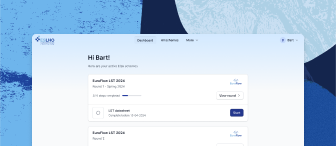

Step 1: Creating a personal account
Go to https://eqa.eslho.org/
You can browse all available schemes; click on a scheme to access general info, timeline, and resources; return to the initial view by clicking the ESLHO logo in the top left of the screen or via the “back” button of the browser
If you already have an account, you can log in via the “Login” button
Click “Create account” in the top right of the screen
Choose how you wish to log in in the future: single sign-on (SSO) with Microsoft or Google, or your email + a password
Many institutes work with Microsoft 365 (Outlook, Teams, etc.); if you are not sure whether this is true for you, you can give it a try by clicking “Continue with Microsoft” while you are logged in to your institute account
It is possible to use both SSO and a password; if you initially use SSO, you can add a password later on in your account settings; if you initially use an email address + password, you can automatically also use SSO if you are signed in in Microsoft/Google with the same email address
SSO: Click “Continue with Microsoft/Google” and follow the instructions in your browser
Email: Fill in your email address and click “Create account”; confirm your email address by clicking the link in the email that is automatically sent to you
Fill in your personal data and click “Next”
If you use your email address to log in, choose a password and click “Save Password”
The password requirements below the entry field will turn green when they are met
Choose at least one area of interest and click “Next”
Continue with “Creating a lab account”, or, if a colleague already created your lab or you wish to create a lab account later, click “Skip for now”
Related articles
Need further assistance?
We’re here to help. If you have any questions or need more information, please don’t hesitate to reach out.
Contact us